Initial Account Setup
This guide walks you through setting up your CMMC Enclave account after receiving your credentials from Stratus Cyber.
Prerequisites
Before starting, ensure you have received your credentials from the team at Stratus Cyber. Your account will initially be in a Pending MFA state with no roles or access assigned.
Setup Process
Step 1: Login to Your Account
With your temporary credentials, login to https://myaccount.azure.us/
Step 2: Change Your Password
When prompted, change your password to something secure that meets the organization's password requirements.
Step 3: Setup Multi-Factor Authentication (MFA)
If you are immediately prompted to setup MFA, proceed and ensure you utilize the Microsoft Authenticator App.
If you are not immediately prompted to setup MFA, navigate to the Security Info section of your account:
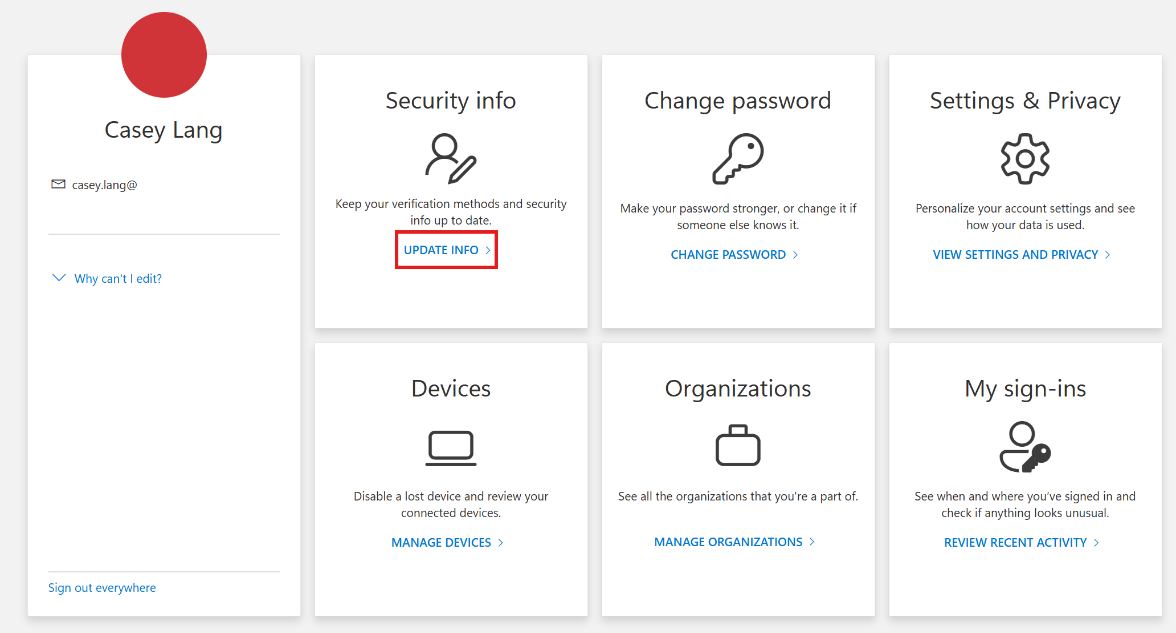
Within the Security Info section, add an authentication method (Microsoft Authenticator App) to complete the MFA requirement.
Additional Authentication Methods
If you wish to setup a YubiKey (or other FIDO2 key), you can do so, but as per environment design you must first setup Microsoft Authenticator before adding a new or alternative method.
MFA Requirements
The CMMC Enclave requires Replay-Resistant MFA. Your choices are limited to:
- Microsoft Authenticator
- A stronger (Phishing-Resistant) method such as FIDO2
Next Steps
Once your MFA is setup, please inform the team at Stratus Cyber so they can change your access and assign the appropriate licenses.
After your access is configured, proceed to Accessing the Enclave for instructions on connecting to your Cloud PC.